Android’s Green Dot Explained: What That Little Green Light Really Means (And Why You Shouldn’t Ignore It)
Wondering why a green dot appears in the upper-right corner of your Android phone? Learn what it means, why it matters, and how to control your privacy.
Have you ever glanced at the top-right corner of your Android phone and noticed a tiny green dot suddenly appear?
At first, it’s easy to assume something is wrong. Maybe your phone has a virus. Perhaps someone is spying on you. Or maybe it’s just another Android feature you never noticed before.
The truth is much simpler—and actually reassuring.
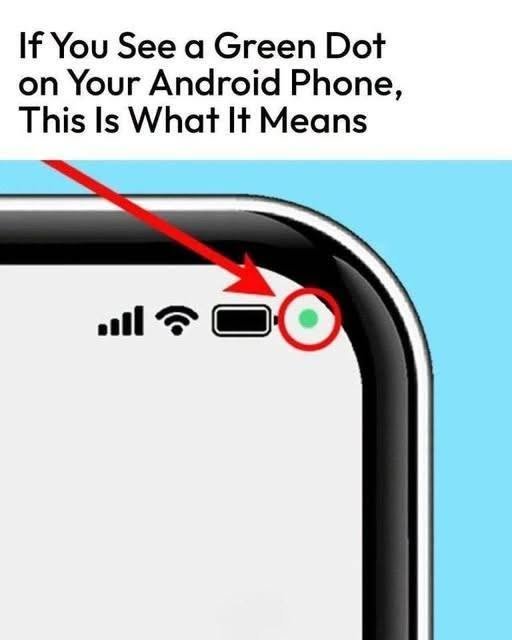
That small green indicator is one of Android’s most useful privacy features. It’s designed to let you know whenever an app is actively using your phone’s camera or microphone. Instead of silently allowing apps to access sensitive hardware, Android now tells you exactly when it’s happening.
In this guide, you’ll learn what the green dot means, why Google introduced it, when you should be concerned, how to identify the app that’s triggering it, and what you can do if something doesn’t seem right.
By the end, you’ll know exactly how to use this feature to better protect your privacy.
What Is the Green Dot on Android?
The green dot is a privacy indicator that appears in the upper-right corner of your Android screen whenever an app is using your phone’s camera, microphone, or both.
Think of it as a visual warning light.
Instead of allowing background access without your knowledge, Android displays this indicator so you always know when these sensitive sensors are active.
If you’re:
- Taking a selfie
- Recording a video
- Making a video call
- Recording voice notes
- Using voice search
- Talking to Google Assistant
…the green dot will appear automatically.
This doesn’t mean something is wrong.
It simply means Android is keeping you informed.
Why Did Google Add the Green Dot?
Privacy has become one of the biggest concerns for smartphone users.
Years ago, apps could request microphone and camera permissions, and once users granted access, many people forgot about them.
That created uncertainty.
Was the camera still active?
Was an app listening in the background?
Google introduced privacy indicators starting with Android 12 to make permission usage much more transparent.
Instead of wondering whether an app is accessing your hardware, you now receive immediate visual confirmation.
The goal is simple:
More transparency. More control. Better privacy.
What Does the Green Dot Actually Mean?
The green dot indicates that one or both of these components are currently being accessed:
- Camera
- Microphone
Depending on your Android device, tapping or expanding the notification area may reveal exactly which permission is being used.
For example:
| Activity | Green Dot Appears? |
|---|---|
| Camera app | Yes |
| Video recording | Yes |
| Google Meet call | Yes |
| Zoom meeting | Yes |
| Voice Recorder | Yes |
| Google Assistant | Yes |
| Voice typing | Yes |
| Snapchat camera | Yes |
| Instagram Stories | Yes |
Every one of these situations is perfectly normal.
Why It Matters More Than You Think
Imagine downloading a flashlight app.
Later that evening, you notice the green dot appears—even though you’re only turning on the flashlight.
That should immediately raise questions.
Why would a flashlight need your microphone?
Why is it accessing your camera?
The green dot helps you spot unusual behavior before it becomes a bigger privacy issue.
It’s one of Android’s simplest yet most effective security tools.
When Should You Be Concerned?
Most of the time, the green dot is expected.
However, there are situations where it deserves your attention.
Watch for these warning signs:
The dot appears when you’re not using the camera.
It stays on unusually long.
It appears immediately after opening an unfamiliar app.
It keeps returning randomly.
Your battery drains much faster than usual.
Your phone becomes unusually warm.
One unusual occurrence doesn’t necessarily mean malware, but repeated unexplained activity is worth investigating.
How to Find Which App Is Using the Camera or Microphone
Android makes this surprisingly easy.
Method 1: Check the Privacy Indicator
On many Android phones:
- Swipe down from the top.
- Tap the green indicator.
- Android displays the app currently using the permission.
Method 2: Open Privacy Dashboard
Go to:
Settings → Privacy → Privacy Dashboard
You’ll see:
- Camera access history
- Microphone access history
- Location usage
- Permission timeline
This feature shows which apps accessed sensitive permissions over the past 24 hours.
It’s one of the easiest ways to audit your device.
Method 3: Review App Permissions
Navigate to:
Settings → Apps → Permissions
Look for apps that have access to:
- Camera
- Microphone
Ask yourself whether each permission makes sense.
If not, remove it.
Can You Turn the Green Dot Off?
In most cases, no.
The indicator is built into Android’s privacy system.
Google intentionally made it difficult—or impossible—to disable because it exists to protect users.
Some manufacturers may offer limited customization, but on most devices the green dot remains enabled.
That’s a good thing.
How to Stop Apps From Triggering the Green Dot
If an app no longer needs access, revoke its permissions.
Here’s how:
- Open Settings.
- Tap Apps.
- Choose the app.
- Select Permissions.
- Disable Camera or Microphone.
The app will ask again if it genuinely needs access in the future.
Common Apps That Trigger the Green Dot
You shouldn’t be surprised to see the indicator while using:
- Camera
- Google Meet
- Zoom
- Microsoft Teams
- Messenger
- Snapchat
- TikTok
- Google Assistant
- Voice Recorder
- Discord
These apps rely on your camera or microphone to function.
Could the Green Dot Mean Someone Is Spying on You?
Usually, no.
The indicator is actually designed to make spying more difficult.
If malicious software secretly tried to activate your camera or microphone, Android would display the green dot.
That’s exactly why Google added the feature.
However, if you repeatedly notice the indicator without any obvious reason:
- Check recent app installs.
- Review permissions.
- Remove suspicious apps.
- Update Android.
- Run a trusted security scan if needed.
What About Samsung Phones?
Samsung includes the same privacy indicator on devices running newer versions of One UI based on Android 12 or later.
The appearance may vary slightly, but the purpose is identical.
Some Samsung models also provide additional privacy controls through Device Care and Security settings.
Does Every Android Phone Have It?
Not necessarily.
You’ll generally find the green privacy indicator on:
- Android 12
- Android 13
- Android 14
- Android 15
- Android 16 (where available)
Older Android versions may not include this feature.
Manufacturers can also customize how the indicator looks.
Mini Case Scenario
Sarah was browsing social media when she noticed the green dot appear—even though she wasn’t recording anything.
Instead of panicking, she checked Android’s Privacy Dashboard.
The culprit turned out to be a messaging app that had automatically opened the camera while preparing a story draft.
Nothing malicious was happening.
She simply closed the draft, and the indicator disappeared.
Without the green dot, she might never have realized the camera was active.
Pros and Cons of Android’s Green Dot
| Pros | Cons |
|---|---|
| Improves privacy awareness | Can confuse new users |
| Shows camera use instantly | Cannot usually be disabled |
| Detects unexpected access | Doesn’t explain every background process immediately |
| Encourages safer app permissions | Appearance varies by device |
Common Mistakes People Make
Assuming It’s a Virus
Most green-dot appearances are completely normal.
Ignoring Permission Requests
Always think before granting camera or microphone access.
Downloading Apps From Unknown Sources
Stick with trusted app stores whenever possible.
Never Reviewing Permissions
Apps change over time. Reviewing permissions every few months is a smart habit.
Expert Tips for Better Privacy
- Check your Privacy Dashboard regularly.
- Remove apps you no longer use.
- Keep Android updated with the latest security patches.
- Download apps from reputable sources.
- Deny permissions that aren’t necessary.
- Use your phone’s built-in security features rather than installing multiple “cleaner” apps.
These small habits can make a meaningful difference over time.
What’s New in Android Privacy?
Recent Android updates have expanded privacy controls beyond the green dot.
Newer versions include:
- More detailed permission management.
- One-time permission grants.
- Automatic permission removal for unused apps.
- Improved Privacy Dashboard information.
- Better controls for background access.
Google continues to make privacy features easier to understand while giving users more control.
What the Future Looks Like
Android privacy tools are expected to become even more proactive.
Future updates may provide clearer explanations for why an app is using certain permissions, stronger background access controls, and smarter alerts when unusual behavior is detected.
The trend is moving toward greater transparency without making everyday phone use more complicated.
Frequently Asked Questions
Why does the green dot appear when I’m on a phone call?
If you’re using speakerphone, video calling, or certain calling features, your microphone is active, so the indicator appears.
Does the green dot mean my phone has been hacked?
No. In most cases, it simply means an app is legitimately using the camera or microphone.
Can I remove the green dot?
On most Android devices, no. It’s a built-in privacy feature.
Why does it appear while using Google Assistant?
Google Assistant listens for your voice commands, which requires microphone access.
Why does the green dot appear in WhatsApp?
WhatsApp uses your microphone during voice calls and both the camera and microphone during video calls.
Is the green dot always accurate?
It’s designed to reflect active camera or microphone use. If you see unexpected activity, check the Privacy Dashboard to identify the app involved.
Does the green dot use extra battery?
No. The indicator itself uses a negligible amount of power.
Can apps hide the green dot?
No. Apps can’t simply choose not to display it when they’re accessing protected hardware.
Why do some phones show different privacy icons?
Phone manufacturers can customize the look of Android, so the indicator’s appearance may vary slightly while serving the same purpose.
Should I be worried if it appears briefly?
Usually not. Many apps briefly access the microphone or camera while launching features, checking permissions, or preparing a call or recording.
Quick Action Checklist
✔ Do
- Keep Android updated.
- Review app permissions regularly.
- Use the Privacy Dashboard.
- Install apps from trusted sources.
- Remove apps you no longer need.
- Investigate unexpected camera or microphone activity.
✘ Avoid
- Ignoring repeated unexplained green-dot activity.
- Granting every permission without reading the request.
- Installing apps from unknown websites.
- Assuming every green dot means malware.
- Leaving unnecessary permissions enabled indefinitely.
Conclusion
That tiny green dot in the corner of your Android screen isn’t something to fear—it’s one of your phone’s most useful privacy safeguards.
Rather than silently allowing apps to use your camera or microphone, Android lets you know exactly when those features are active. In most cases, seeing the green dot simply means you’re using an app that legitimately needs access. When it appears unexpectedly, it serves as a helpful reminder to review your permissions and make sure everything is working as intended.
Taking a few minutes to understand this feature can give you greater confidence in how your phone handles your personal information. Combined with regular permission reviews and software updates, it’s an easy way to stay in control of your digital privacy.
If you found this guide helpful, leave a comment with your experience, share it with friends or family who use Android, and explore more practical smartphone tips to get the most from your device.
The green dot isn’t a warning that something is wrong—it’s Android letting you know your privacy is being protected.