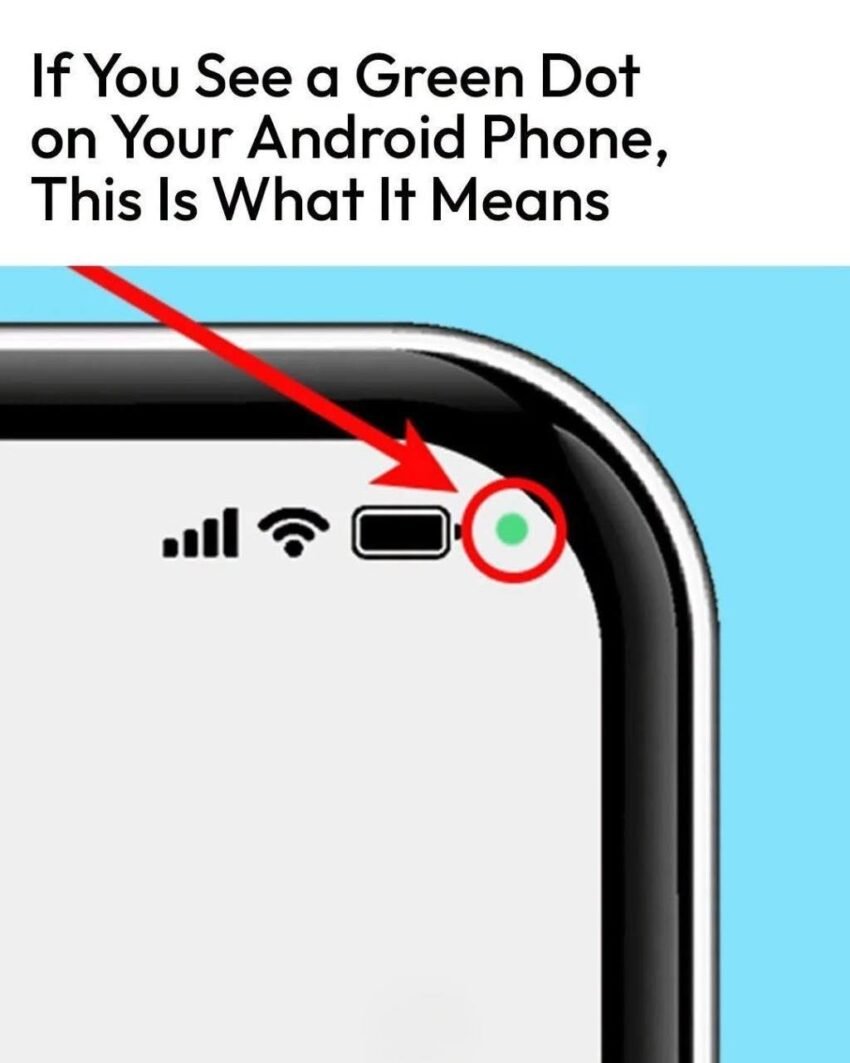
See a Green Dot on Your Android Phone? Here’s What It Means and What You Should Do
A green dot on your Android phone usually means your camera or microphone is being used. Learn what it means, how to check apps, and protect privacy.
See a Green Dot on Your Android Phone? Here’s What It Means
You unlock your Android phone and notice something strange:
A tiny green dot appears near the top of your screen.
It may only last a few seconds.
It may appear when you open an app.
Or it may show up when you are not sure why anything is using your camera or microphone.
Naturally, many people wonder:
“Is someone watching me?”
“Has my phone been hacked?”
“Should I be worried?”
The good news is that in most cases, the green dot is not a sign of a virus or someone spying on you.
It is actually a privacy indicator designed to tell you when an app is accessing your phone’s camera or microphone.
But understanding why it appears—and knowing how to check which app triggered it—can help you stay in control of your privacy.
What Does the Green Dot Mean on Android?
On many newer Android phones, a green dot appears when an app is actively using:
- Your camera
- Your microphone
- Or both
Google introduced these privacy indicators as part of Android’s security features to give users more visibility into what apps are doing.
Think of it like a small warning light:
Green dot = an app is currently accessing a sensitive feature.
It does not automatically mean something dangerous is happening.
Why Does Android Show This Green Dot?
Your phone contains sensors that can reveal personal information.
The camera can see your surroundings.
The microphone can hear conversations.
Because of this, Android added indicators so users are not left wondering whether an app is using these features.
The green dot is meant to answer a simple question:
“Is an app using my camera or microphone right now?”
Common Reasons You See the Green Dot
1. You Opened the Camera App
This is the most obvious reason.
When you:
- Take a photo
- Record video
- Scan a document
- Use a camera feature
the green indicator may appear.
That is expected.
2. You Are Making a Call
Apps that use voice or video communication may trigger the indicator.
Examples include:
- Phone calls
- Video calls
- Voice chat apps
- Meeting apps
3. Voice Assistants Are Listening
Features such as voice assistants may briefly access your microphone when activated.
Examples:
- Voice searches
- Wake-word detection
- Voice commands
4. Social Media Apps Are Using Camera Features
Some apps may request camera or microphone access for:
- Recording videos
- Creating stories
- Video messages
- Live broadcasts
5. Background App Activity
Sometimes an app may access your microphone or camera while running in the background.
This does not always mean harmful activity.
For example:
- A navigation app using voice input
- A messaging app preparing a voice feature
- A security app using camera functions
However, unexpected access is worth checking.
How to Find Which App Is Using Your Camera or Microphone
If the green dot appears and you want to investigate:
Step 1: Swipe Down From the Top
Open your notification panel.
On many Android phones, tapping the green indicator or privacy notification will show which app recently accessed your camera or microphone.
Step 2: Check Privacy Settings
Go to:
Settings → Privacy → Permission Manager
Then review:
- Camera permissions
- Microphone permissions
You can see which apps have access.
Step 3: Remove Permissions You Don’t Need
Ask yourself:
Does this app really need camera access?
Does it need microphone access?
For example:
A photo editing app may need camera access.
A calculator app probably does not.
How to Control Camera and Microphone Permissions
You can usually manage permissions through:
Settings → Apps → Select App → Permissions
You may see options such as:
- Allow only while using the app
- Ask every time
- Don’t allow
Choosing the most limited option that still lets the app work is often a good privacy practice.
Does the Green Dot Mean Your Phone Is Hacked?
Usually, no.
The green dot itself is a security feature, not a warning that your phone has been compromised.
A hacked phone may involve other signs, such as:
- Unknown apps appearing
- Unusual battery drain
- Strange pop-ups
- Unexpected account activity
- Unexplained data usage
The green dot simply tells you that an app is accessing your camera or microphone.
What If the Green Dot Appears When You Are Doing Nothing?
This is when it is worth investigating.
Try these steps:
1. Close Recent Apps
Remove apps running in the background.
2. Check Permission History
Many Android versions include a privacy dashboard showing recent access.
Look for apps that used:
- Camera
- Microphone
- Location
3. Update Your Phone
Security updates often fix bugs and improve privacy protections.
4. Delete Suspicious Apps
Remove apps that:
- You do not recognize
- Were installed recently
- Request unnecessary permissions
Apps That Commonly Need Camera or Microphone Access
| App Type | Why It May Need Access |
|---|---|
| Camera apps | Photos and videos |
| Video calling apps | Calls |
| Messaging apps | Voice messages |
| Navigation apps | Voice commands |
| Social media apps | Recording content |
| Scanner apps | Document scanning |
Common Privacy Mistakes Android Users Make
Mistake 1: Accepting Every Permission
Many people tap “Allow” without reading.
A simple permission request can give apps access to sensitive information.
Mistake 2: Keeping Unused Apps Installed
Old apps may still have permissions.
Regularly removing apps you no longer use improves security.
Mistake 3: Downloading Apps From Unknown Sources
Installing apps outside trusted app stores increases risk.
Mistake 4: Ignoring Security Updates
Updates often include important security improvements.
Android Privacy Tips You Can Use Today
✔️ Review App Permissions Monthly
A quick check can reveal apps with unnecessary access.
✔️ Use Strong Screen Security
Use:
- A PIN
- Password
- Fingerprint
- Face unlock (if available)
✔️ Keep Apps Updated
Updated apps usually include security fixes.
✔️ Remove Apps You Don’t Trust
If an app feels unnecessary, it probably does not need access to your private information.
Frequently Asked Questions
Is the green dot on Android dangerous?
No. It is a privacy indicator showing that an app is using your camera or microphone.
Can someone see me through my phone camera?
The green dot helps alert you when an app is accessing the camera, but you should still manage permissions carefully.
How do I know which app caused the green dot?
Open your privacy dashboard or tap the indicator notification to see recent camera or microphone access.
Why does the green dot appear randomly?
An app running in the background may be accessing a sensor. Check permissions if it happens unexpectedly.
Can I turn off the green dot?
The indicator is part of Android’s privacy protection features and generally cannot be disabled on newer versions.
Does the green dot mean someone is listening?
Not necessarily. It means an app is using the microphone, which could be for a legitimate feature.
Should I remove apps that use my microphone?
Only if the permission is unnecessary or the app is unfamiliar.
Do iPhones have a similar feature?
Yes. iPhones use colored privacy indicators as well to show camera and microphone access.
Android Privacy Checklist
✔️ Do
- Check which apps have camera access.
- Review microphone permissions.
- Keep Android updated.
- Remove unused apps.
- Pay attention to unexpected activity.
❌ Avoid
- Automatically approving every permission.
- Installing unknown apps.
- Ignoring unusual behavior.
- Assuming every green dot means hacking.
Conclusion
That tiny green dot on your Android phone is not there to scare you.
It is there to inform you.
Modern smartphones collect and process a lot of information, and privacy indicators give you a simple way to understand when sensitive features are being used.
The next time you see it, do not panic.
Check which app triggered it, review permissions, and keep control of your digital privacy.
A green dot on your Android phone usually means your camera or microphone is active. It is a privacy feature—not a sign that your phone is automatically hacked. Knowing how to check permissions is the best way to stay protected.
Share this with someone who has wondered about the mysterious green dot on their phone.